Android Data Recovery







How to Recover Deleted Photos from iPhone
-- Wednesday, May 08, 2013
This article would introduce three different methods to solve the problem of photos loss on iPhone. Please continue to read, and you will find the one that would work in your case.
- Part One: Recover Deleted Photos from Recently Deleted Folder on iPhone
- Part Two: Restore Images via iTunes/iCloud Backup Files
- Part Three: Retrieve Pictures Directly from iPhone
Part One: Recover Deleted Photos from Recently Deleted Folder on iPhone
If you want to recover the deleted photos on your iPhone, the simplest way is to go to the Recently Deleted folder to get them back. Please follow the guide below:1. Open Photos app on iPhone.
2. Go to Recently Deleted folder and you can see the deleted photos during the recent 30 days.
3. Choose the ones you want to recover to device and tap "Recover > Recover Photo" as the following screenshot shows.
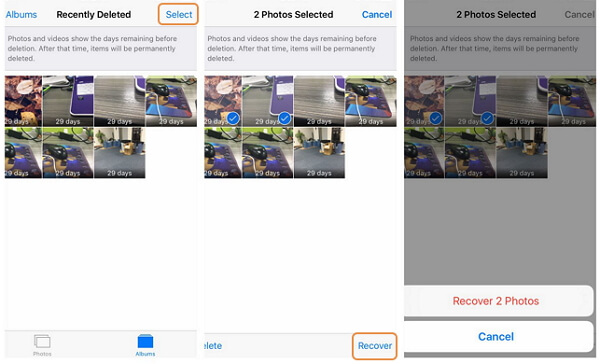
Note: Recently Deleted folder on iPhone only keeps the photos that are deleted in 30 days. After it pasts the expiration date, items would be deleted and you are not able to get them back from this folder anymore.
In this way, what if you want to recover the photos that have been deleted from Recently Deleted Folder or the ones that are lost for a while? Please continue to read, you will find a method below that can fit your case.
Part Two: Restore Images via iTunes/iCloud Backup Files
If you have back up your photos or videos with iTunes or iCloud before, it is very easy to retrieve data from the back up files. However, for the deleted ones you haven't backed up yet (you may back up data regularly, but sometime you create the new data and still do not have time to back them up), there is no way to get them back from your backup copies. What's more, if you recover the backup files on your iPhone, the deleted data including the ones that have not been backed up would be possibly overwritten.Tips: If you delete data on device, it is not wiped out permanently provided that it has been overwritten by the new adding data. And you are able to recover them with some kinds of third-party data recovery program. But if you recover the backup files on iPhone, the previous deleted data would be overwritten to a great extent and you can't retrieve the deleted which haven't been backed up even with the data recovery program.
To get rid of the limits of recovering data via iTunes/iCloud backup files, you can continue to try iPhone Data Recovery program we recommend in part 3.
Part Three: Retrieve Pictures Directly from iPhone
iPhone Data Recovery is capable of retrieve lost pictures of any kind such as .jpg, .png and .gif, from many versions of iOS products including iPhone SE/ 7/ 6s/ 6s Plus/ 6/ 6 Plus, iPad Pro/ Air 2/ mini 4 and so on. It also comes with the feature that enables you to preview your lost data before you decide which one to restore.To get everything started, please take a few second to download iPhone Data Recovery.


Step 1 Connect with PC
Please download and install iPhone Data Recovery first. After that, launch the program and connect your device to the computer. Click the first icon on the left and hit "Start Scan". Your handset will be scanned for both lost and existing files.
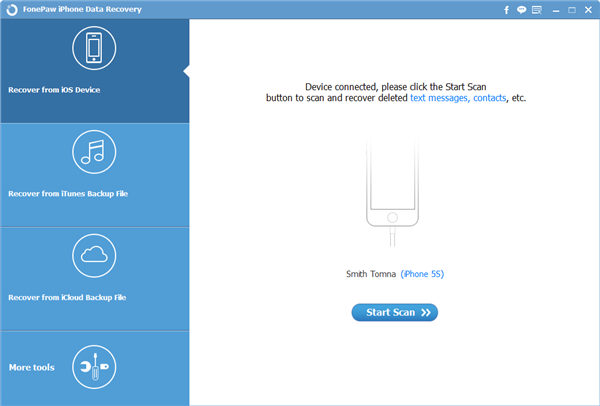
Step 2 Previews and Get Back Your Pictures
All the files in your phone will be listed after scanning. More detailed information can be seen by ticking the boxes in the navigation panel on the left. You phone images will be restored by clicking the "Recover" button.

You are able to choose one of the methods to recover your photos on iPhone. But you still have to be careful and note that once unexpected deletion occurs, you have to stop using your handset to prevent lost data being overwritten. And it's always advisable to back up your files.

Ivy Bruce is the Founder and Editorial Director at Recovery-Android Studio. You can also find her on Google+ and Twitter.