Android Data Recovery







How to Transfer Photos between Android and Computer
-- Wednesday, July 26, 2017
TunesGo allows users to well manage the photos from Android smartphone. Now, let's see what exactly the TunesGo program can do for you:
1. Add photos(or folders) from computer to Android
2. Export files from Android to PC
3. Straightforwardly delete photos from Android in batch
4. Convert photos to GIF
5. Backup photos to PC
In the following guide, you will see how to transfer photos from Android to PC. In case you need it, we will also go over the process of import photos to your Android device. And for the other features we list above, maybe you can have a try on your own.


Transfer pictures between Android devices and computer
Step 1 Connect to ComputerDownload and launch Android Transfer on your computer. Connect your device to desktop with USB cable. Either way, it's convenient.
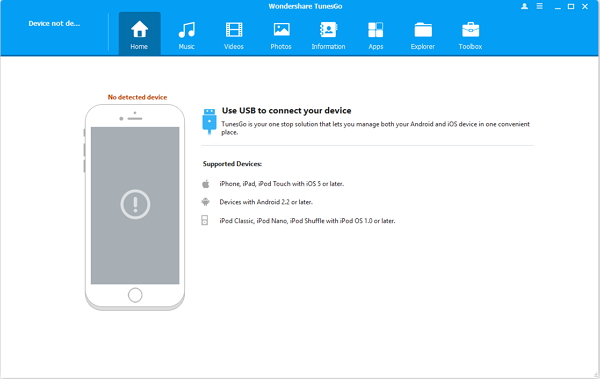
Step 2 Import Photos to Android from Computer
It is always a little confusing to find the file that contains your photos. But with Android Transfer, simply select "Photos" on the top pane and there they are. All folders on your Android phone are listed. Select a folder as import destination then click "Add" icon on the top of the screen. What's next is to choose pictures you want to import from your PC in a pop up window.
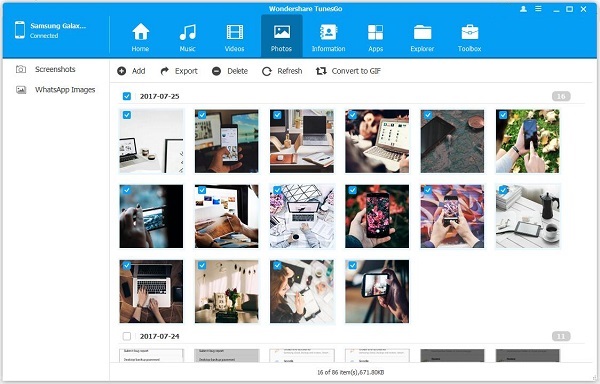
Step 3 Export Pictures from Android to Computer
Simply choose photos you want to export, and then click the "Export > Export to PC" icon on the top of the screen. Select export destination on the pop up window and Voila! You job was done by just a few clicks!
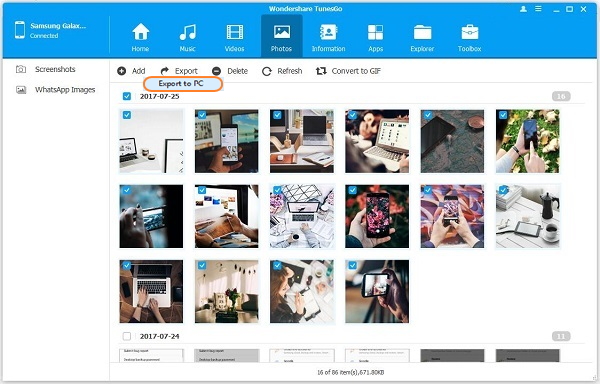
Now you can take as many pictures as you want without worries. It also enables you to manage photos in Android phones by adding or deleting those you want. Still don't have a clue of how this works? Feel free to contact us in the comment. If you rather figure it out by yourself, give it a shot.

Ivy Bruce is the Founder and Editorial Director at Recovery-Android Studio. You can also find her on Google+ and Twitter.